Install on iPhone or iPad
Follow these six steps in Safari on your iPhone or iPad. Have your CroakerMOD login and game license ready.
- 01 / GET THE APP
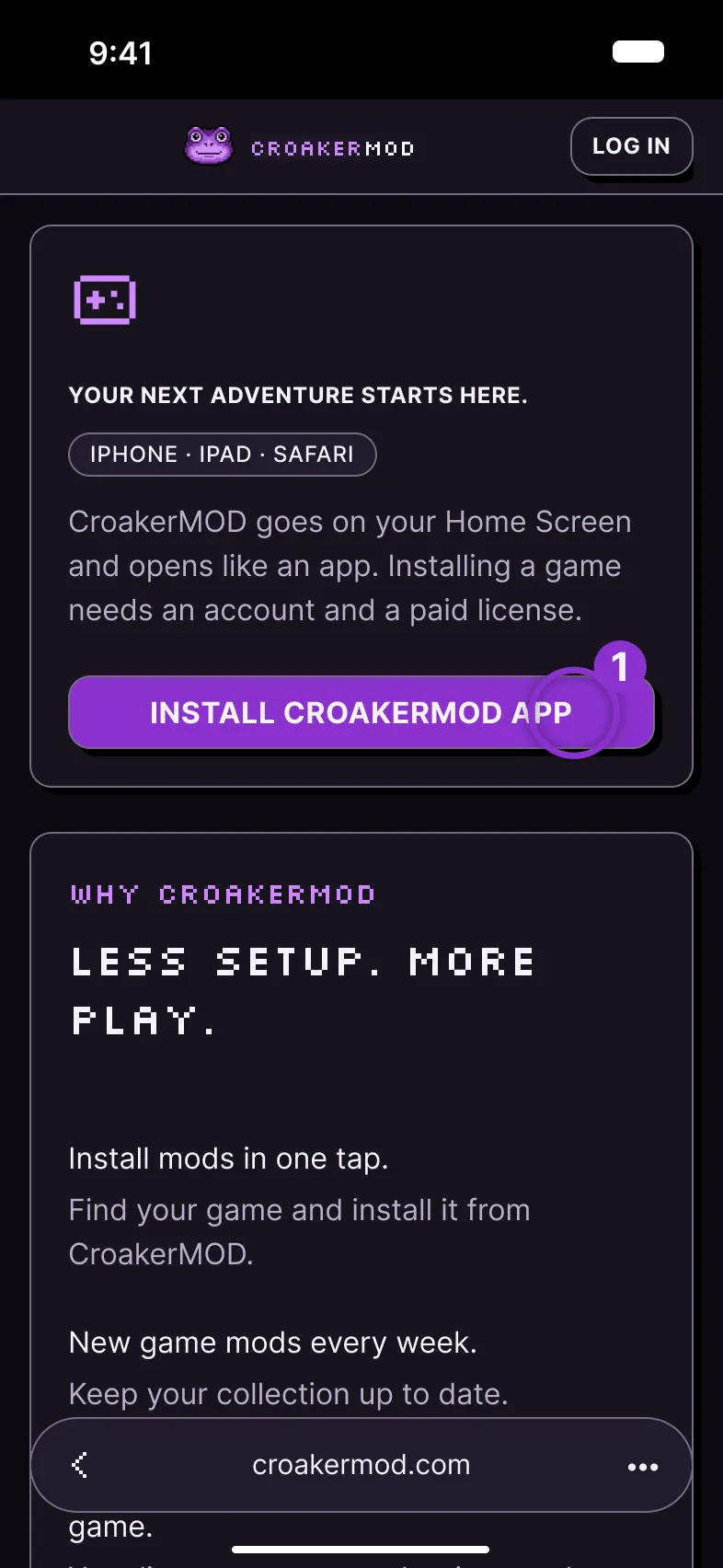
Add CroakerMOD to your Home Screen
More details
Open croakermod.com in Safari and tap INSTALL CROAKERMOD APP. Follow the steps to add it to your Home Screen, then open CroakerMOD from there and log in.
- 02 / FIND YOUR GAME
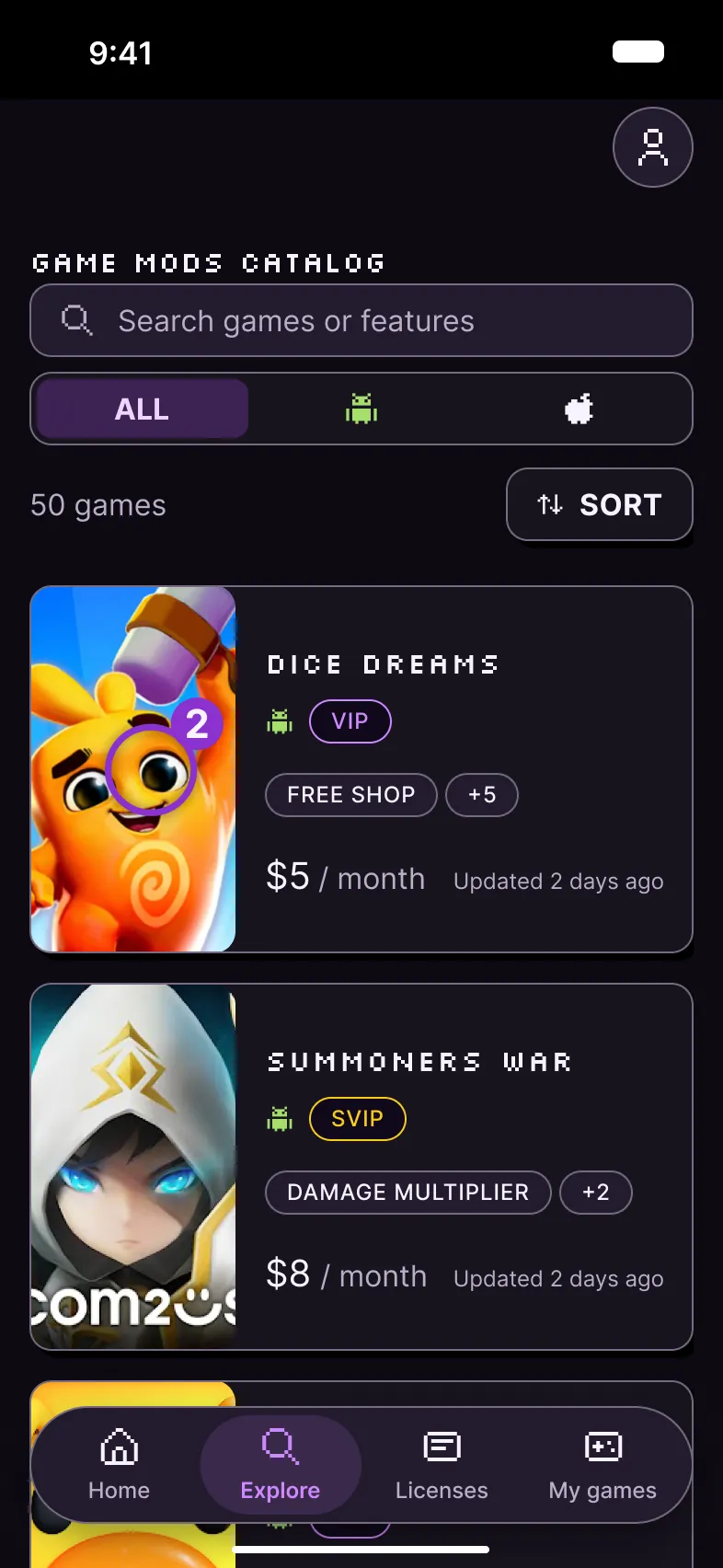
Pick your game
More details
Open Explore and find your game. Its page lists every mod feature and its tier. Look for the Apple icon: only those games install on iPhone and iPad.
- 03 / ADD YOUR DEVICE
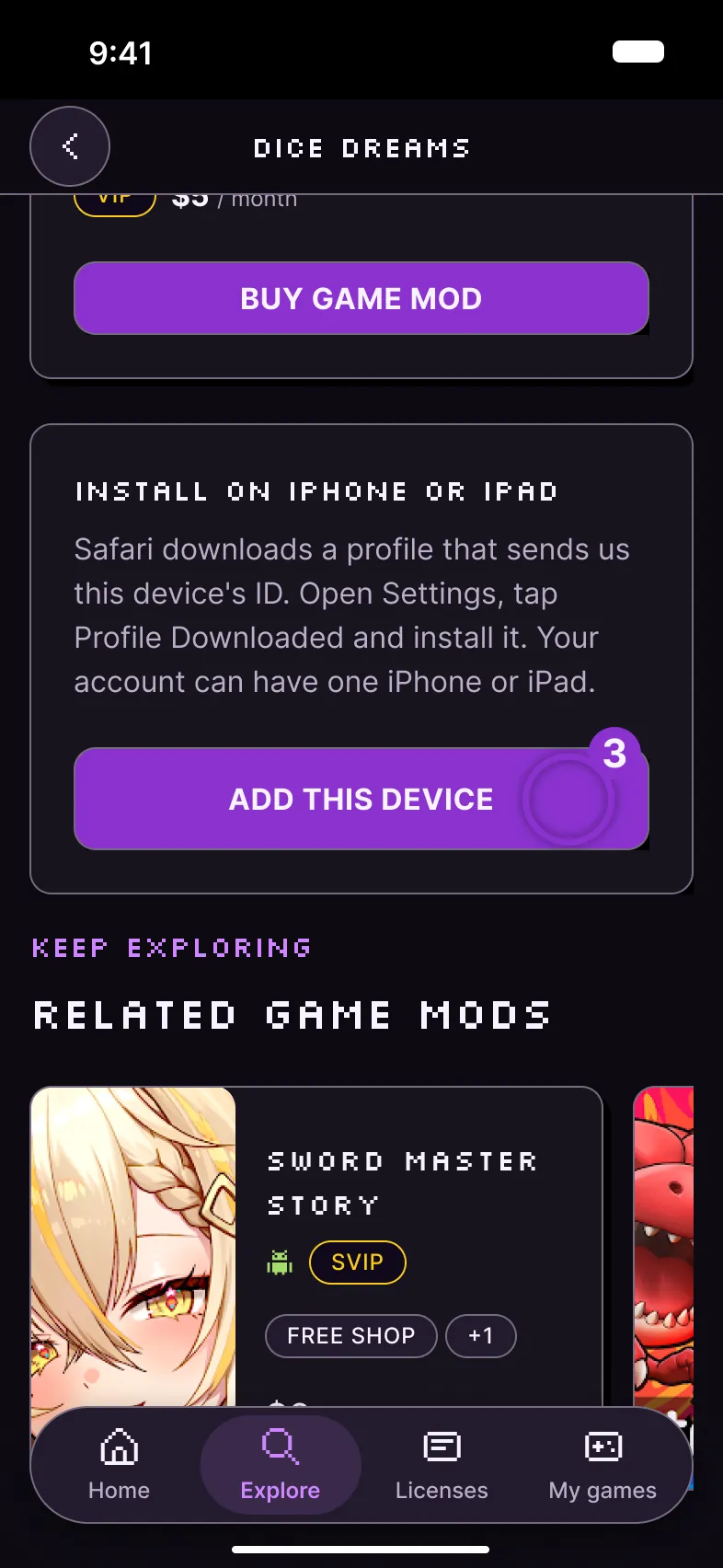
Tap ADD THIS DEVICE
More details
With an active license, tap ADD THIS DEVICE. Safari downloads a profile that sends us this device’s ID. Open Settings, tap Profile Downloaded and install it. You do this once; your account has one iPhone or iPad.
- 04 / INSTALL
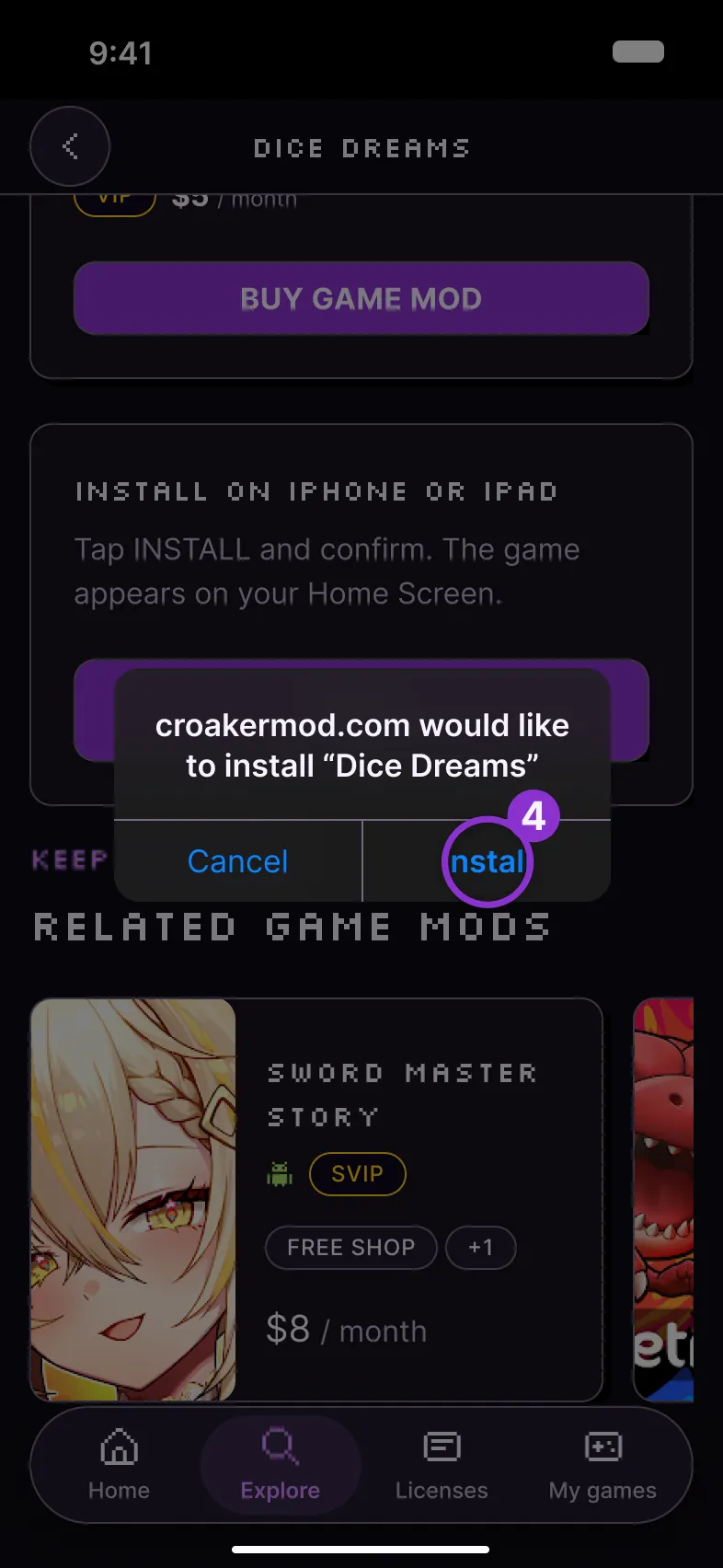
Tap INSTALL
More details
We prepare the game for your device, which takes a few minutes; the page updates by itself. When it shows INSTALL, tap it and confirm. The game appears on your Home Screen.
- 05 / LOG IN
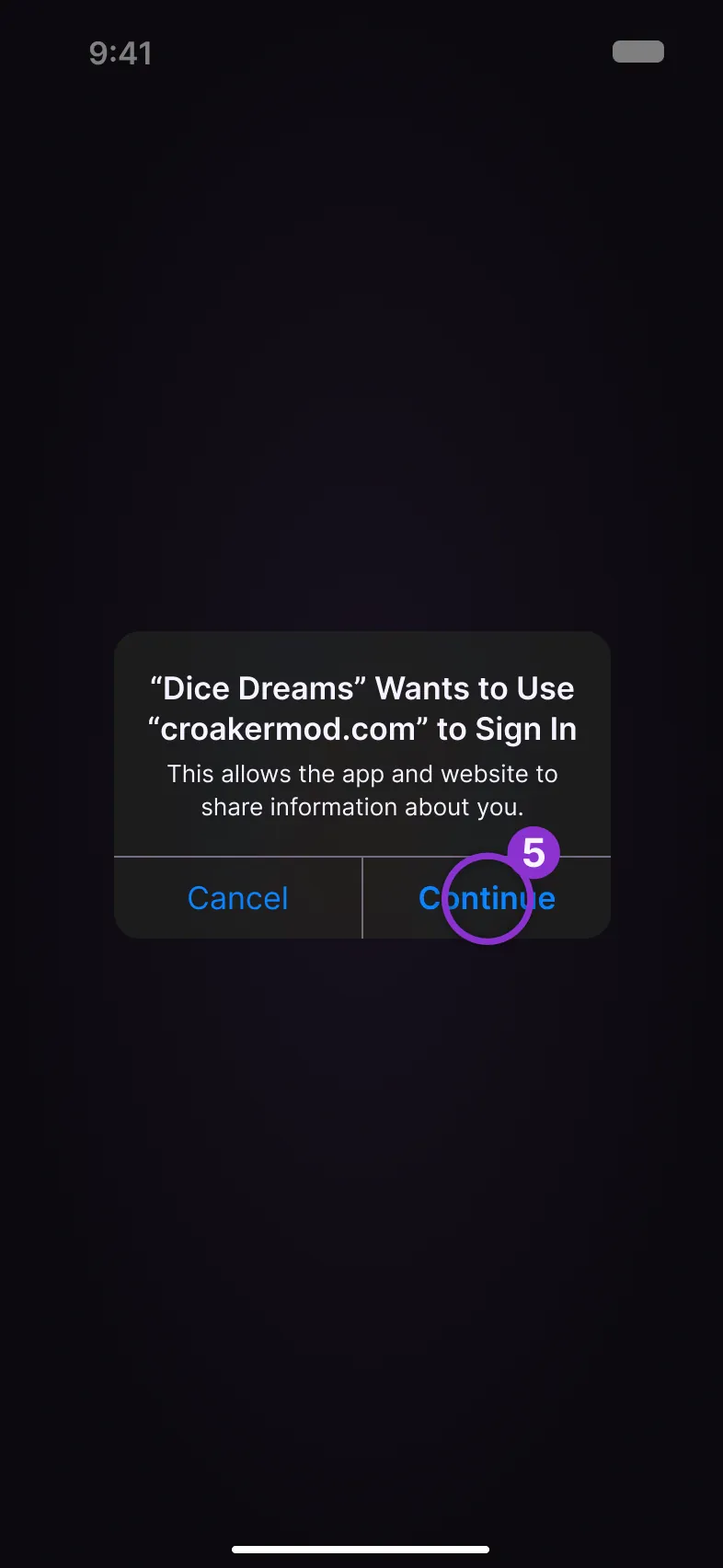
Open the game and log in once
More details
The first time, iOS asks to use croakermod.com to sign in. Tap Continue, and log in if the page asks; it closes by itself. Later launches need no login.
- 06 / PLAY
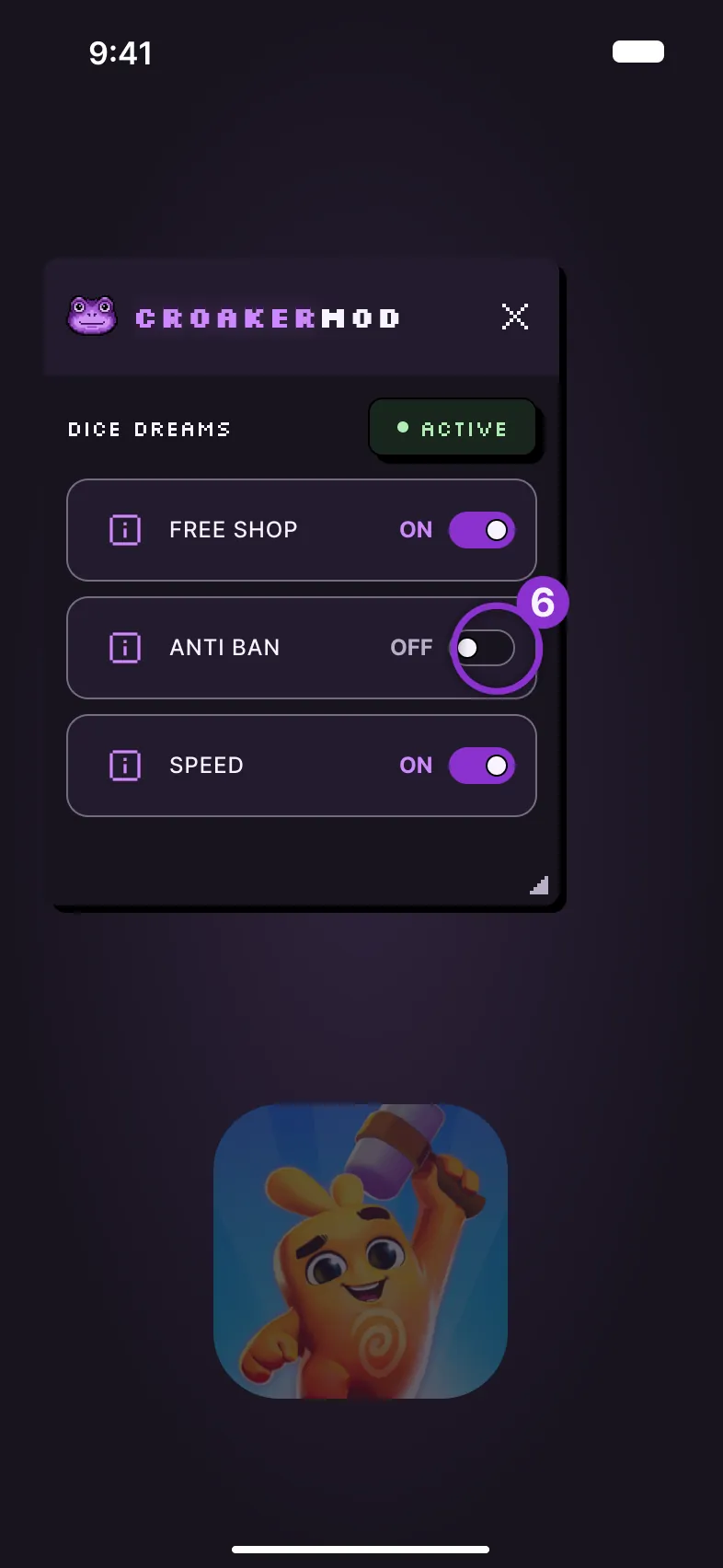
Switch mod features on
More details
Open the mod menu and wait until it shows ACTIVE, then switch features on and off. Turning one off stops its effect; anything already granted stays.
Use Safari
Adding your device and installing games only work in Safari or the CroakerMOD Home Screen app, not in other browsers.
Ready to get started?
Open the CroakerMOD page in Safari on your iPhone or iPad.
GET CROAKERMODPublished · Updated